Lesson 2 - Red-rumped Parrot and Kangaroo Grass
Red-rumped Parrot and Kangaroo Grass Course Overview and Learning Objectives
| Lesson number | Description | Video of lesson | Audio recording of class session |
|---|---|---|---|
| Lesson 2a | #Learn how to Troubleshoot a Raspberry Pi on Startup | 
|
audio |
| Lesson 2b | #Red-rumped Parrots and Kangaroo Grass |
|
audio |
| Lesson 2c | #Scratch Dog Game Conclusion | 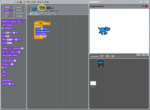
|
audio |
| Lesson 2d | #Scratch Parrot Game | 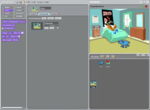
|
audio |
Scratch Coding Scripts
- Download Scratch (v1.4) file dogAndParrotAnimation.sb using the link below.
- https://www.dropbox.com/s/ssy27ik76zeairt/dogAndParrotAnimation.sb?dl=0
Learn how to Troubleshoot a Raspberry Pi on Startup
- Mouse doesn't work
- Unplug existing mouse and try another mouse.
- Try rebooting the Raspberry Pi computer
- Display doesn't work
- Make sure the display is plugged in and turned on. A green power light should appear on the monitor.
- Check that the VGA to HDMI adapter is plugged in correctly. Check the orientation of the plug.
- Raspberry Pi desktop environment looks different
- This often happens when the monitor is off or not connected during startup.
- Restart the Raspberry Pi.
Red-rumped Parrots and Kangaroo Grass
Scratch Dog Game Conclusion
- Change the default name of the sprite to dog
- Ensure all the code for the dog sprite is the same as shown below.
- There should be two dog sprite costumes.

- Click on the middle button only face left-right to ensure the dog doesn't turn upside down.
- Students can experiment with the other two buttons to see the effect on the dog.

Make the Dog Wag it's Tail
- In this activity we are going to make the dog's tail wag.
- Notice that the dog's tail is pointing up for both dog costumes.
- We will edit one dog sprite so that the tail points down.
- Click on the Costumes Tab.
- Click on the Edit button for dog2-c

- Choose the Select Tool which looks like a hashed square.
- Using the mouse click and drag using the left mouse button to select the tail of the dog as shown.

- Click on the flip vertically button to make the dog's tail flip

- Hover over the tail and click the left mouse button to drag the tail down into position.
- Then click on OK to exit the editing mode.

- When the Green flag is clicked the dog will now way it's tail.

Scratch Parrot Game
- Create a flying red-rumped parrot game in Scratch.

Adding a Parrot Sprite
- Choose new sprite from file.

- Choose Parrot1-a
- Click on OK.

- Change default name of sprite to parrot

- Import a second parrot costume so that we can do animation.
- Click on the Costumes Tab.
- Then click on Import

- Click on parrot1-b
- Then click on OK.

- The parrot is too big.
- Click on the shrink tool
- Then click on the parrot in the stage area to shrink the sprite.

Making the parrot Move using the Arrow Keys
- In this game we will make the parrot move using the arrow keys on the keyboard.
- Click on the Scripts Tab.
- From the Control blocks drag the when space key pressed block.
- Using the drop down arrow select up arrow

- From the Motion blocks.
- Drag the point in direction 90 block.
- Using the drop down arrow change the setting to (0) up.

- Complete the coding script.
- Add the move 10 steps block
- Add the next costume block so that the parrot flaps its wings.
- Clicking on the up arrow on the keyboard will now make the parrot fly upwards.

- Select the middle button next to the sprite to make the parrot only face left-right

Make the Parrot Move Down
- To make the parrot fly downwards we use the same combination of blocks.
- Change the keyboard response block to when down arrow key pressed
- Change the point in direction motion block to setting (180) down
- Test the code by pressing both the up and down arrow keys.

Duplicate Function in Scratch
- Students don't need to drag individual blocks to the scripting area.
- To copy existing code right mouse button click and select duplicate
- Then click where you want to place the duplicated blocks.
- Make sure the first block in the code is selected when duplicating.

- When duplicating code the settings for individual blocks don't change.
- For each code block you need to adjust the settings for the left and right arrow keys.

Making the Parrot Change Colours
- We can make the parrot more bright and colourful by changing its feather colours.
- Create the code below and add in the change colour effect by 25
- When the code is executed the parrot will change colours very quickly.

Adding a Background to the Stage
- The default stage has no background.
- Adding a background gives the sprites more context and is more fun.
- Ensure that the Stage sprite is selected.
- Click on the Backgrounds Tab
- Then click on Import

- Select the Indoors folder.
- Then select Bedroom
- Click on OK.

- Reposition the dog so that it looks like it is walking on the bedroom floor.