BirdNET-Pi Bencheng: Difference between revisions
Jump to navigation
Jump to search
| Line 37: | Line 37: | ||
- Step 5.1 Set username and password | - Step 5.1 Set username and password | ||
[[File:Rasp_Step_5.1.png | 450px]] | |||
- Step 5.2 Configure wireless LAN | - Step 5.2 Configure wireless LAN | ||
[[File:Rasp_Step_5.2.png | 450px]] | |||
- Step 5.3 Set locale settings | - Step 5.3 Set locale settings | ||
[[File:Rasp_Step_5.3.png | 450px]] | |||
= Another section = | = Another section = | ||
Revision as of 03:15, 27 July 2023
Introduction
For help just search for mediawiki formatting
Configuration of Raspberry Pi
To include photo - just click on Upload file on the left Upload file / image Then copy file name and place here using following format...
- Step 1: Download the Raspberry Pi Imager
Download link: https://www.raspberrypi.com/software/

- Step 2: Insert the sim card into the adapter and plug it into the computer.


- Step 3: Choose Raspberry Pi OS Lite(64-bit) as the Operating System.

- Step 4: Choose storage space
(If nothing is available it’s because the sim wasn’t recognized. Unplug it and insert again.)

- Step 5: Advanced Options
Click the gear icon at the right bottom of the interface.

- Step 5.1 Set username and password
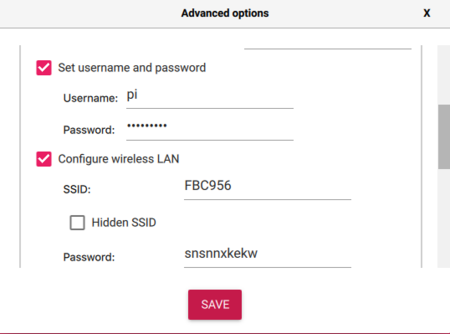

- Step 5.2 Configure wireless LAN


- Step 5.3 Set locale settings


Another section
tar -xvf arduino-1.8.19-linuxarm.tar.xz
adad
fa
f
sd
fs
adf
asd
f
sdf